Adding a new employee to the system
- Do this for adding a new employee to Gmail and Workchat
Adding a new employee to GMAIL
- Open a new tab in Google Chrome

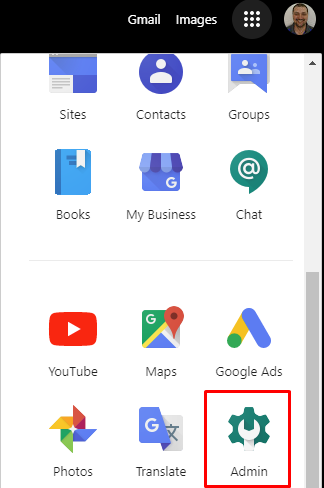
- Click on the 9 dots on the right next to your profile picture

- Scroll down to Admin
- Click on "Users"

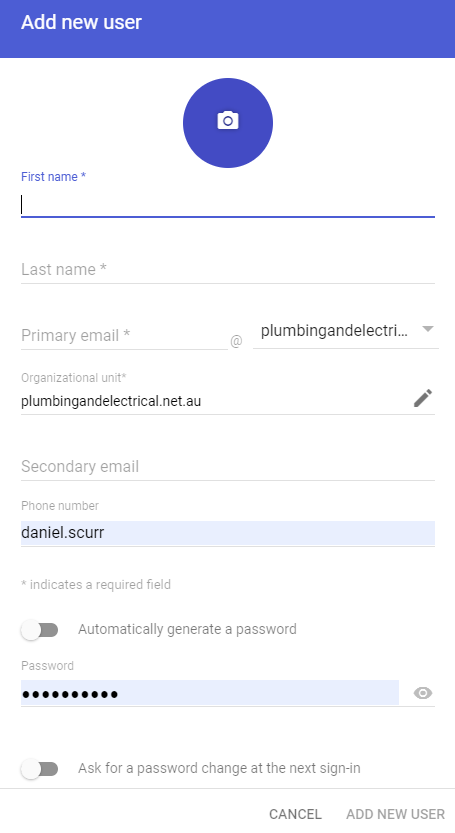
- Click on "Add new user"

- Fill out the form
- Enter First Name
- Enter Last Name
- Enter the email address (firstname.lastname)
- Clear anything in the phone number section
- Enter the password Plumbingdr1
- Click Add new user at the bottom of the form
Open the Work Chat
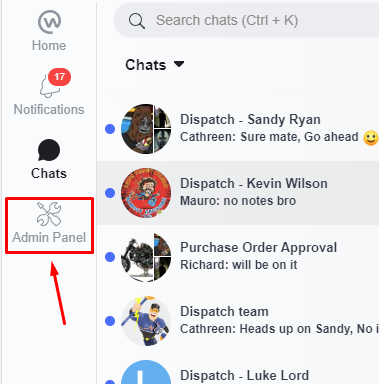
- on the left hand side click on "Admin Panel"
- From here, click on "People"
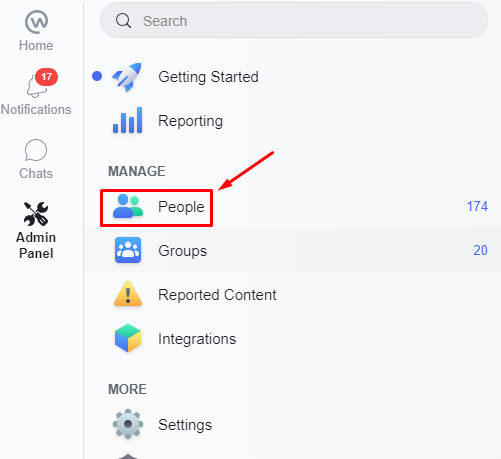
- Next, click on "Add People" in the top right hand corner

- Click on "Add Individual"

- Enter the technicians name and email address (firstname.lastname@plumbingandelectrical.net.au)
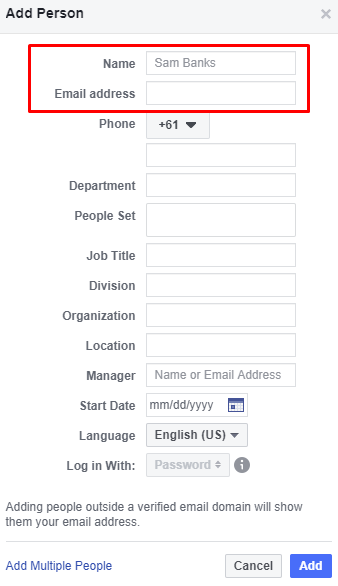
- Click "Add" once you have filled in the details
Log into the new users Gmail account
Right click on this Gmail and click "Open link in incognito window"
Enter the new users email address (firstname.lastname@plumbingandelectrical.net.au)
Enter Plumbingdr1 as the password
Click on the work chat email and click "Join your team"
It will then ask you to create a password for the user, enter Plumbingdr1
Now right click on this Workchat and click "Open link in incognito window"
Enter the new users email (firstname.lastname@plumbingandelectrical.net.au)
Enter Plumbingdr1 as the password
Click on the profile picture and the bottom left

- Then click on "Settings"
- Click on "Notifications"
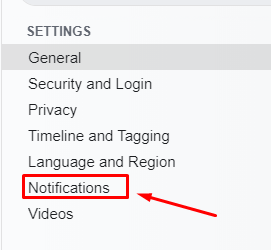
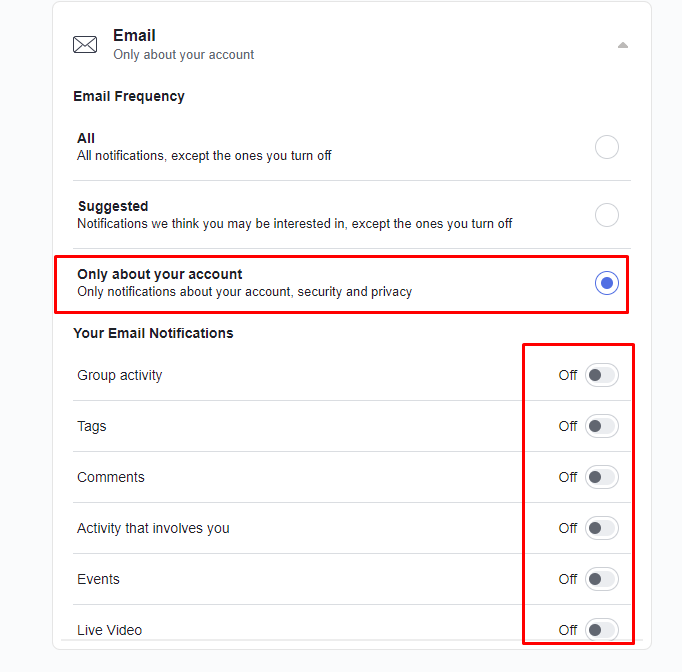
- Click on "Only about your account" under the email section and make sure all other email notifications are turned off