Marketing Stats
- Do this to update the marketing stats until it's automated in Negoti8or
Downloading the Commscode report
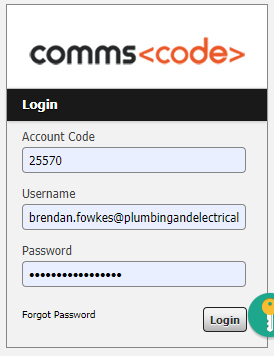
- Open CommsCode and sign in with your credentials, account code is always 25570
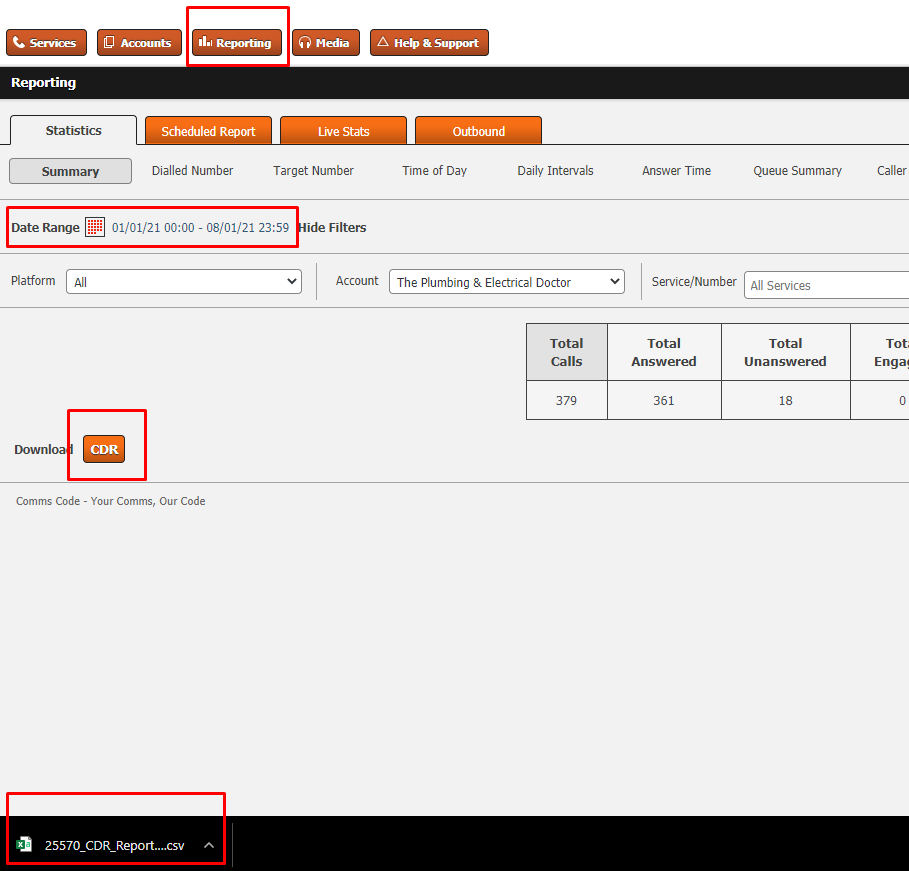
Once signed in click on Reporting
Change the date range to the dates your require
Click on the CDR button next to Download at the bottom of the screen
This will download the report for that date range
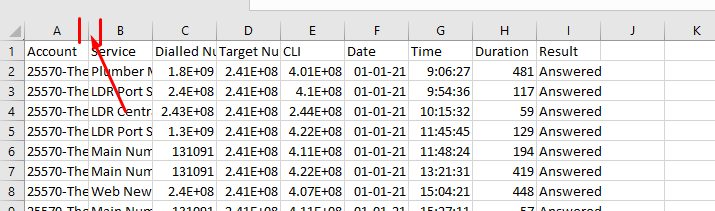
Open the report that was downloaded from Commscode, this will open in Excel
Once this opens DOUBLE click on the vertical lines between each column to expand them
Now that all columns are expanded click on the first record on line 2
Hold down the shift key and press the right arrow until you have selected across to the result columns
With the shift key still pressed, hold down CTRL as well and press the down arrow, this will select the whole sheet
Hold down CTRL and press C to copy the sheet
Scroll all the way up and take note of the first highlighted row
Open the Marketing Stats Spreadsheet
Click on the Calls Commscode tab at the bottom
Hold CTRL and press the down arrow to go to the last line in the spreadsheet
Now this is where we compare the first line of the copied report and see if it already exists in the marketing stats sheet
If it does then select the first entry on that line and hold CTRL + V to paste over the top of it
This is all that is required for Commscode, you can close the website and report now
The Jobs Tab
Click on the Jobs tab at the bottom of the marketing spreadsheet
Select the first Job id in the list and hold CTRL and press arrow down to go to the bottom
Take note of the date and job id
Open Reports in Negoti8or and click on Demographic
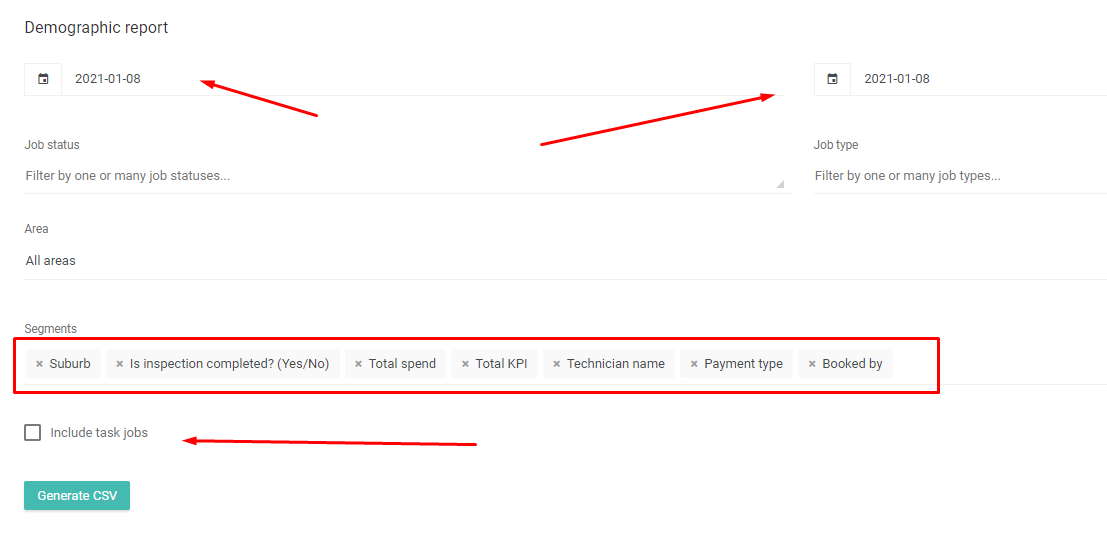
Change the date range to start from the last date in the marketing spreadsheet
Add the following segments, take the tick out of include task jobs and click Generate CSV
Open the file that has been downloaded
Click on column F then click Wrap text twice, its located in the menu beneath View
Again click on each vertical line between each column to expand them
Now that this is done click on row 2, the number and click on Filter on the menu to the right

This will put a filter on each Column, select the dropdown for date and select Oldest to Newest
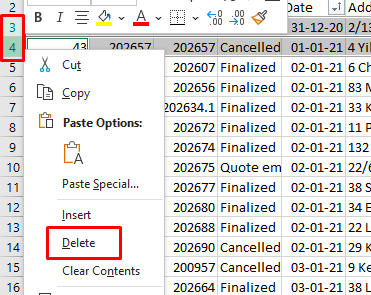
This will sort all the entries by Date, any records that date is prior to the date of the last records in the marketing stats delete them
Select the rows you want to delete and right click and select delete
Now click on the first job ID at the start of the sheet and use SHIFT plus right arrow, then CTRL + SHIFT and down arrow to select the sheet
Press CTRL + C to copy all that is selected
Take note of the first job ID you selected
Go to the marketing stats and find that JobID you selected and select it in the marketing stats, then use CTRL + V to paste over the top
You can now close the downloaded report
The Calls Negoti8or Tab
Open the Calls Negoti8or tab in the Marketing stats
CTRL arrow down to get to the bottom of the list
Choose the date you need to select from, if the last date for instance is 8/1/2021 then scroll to the first entry with that date
Select the ID in the first column for that entry and take note of it
Open the Calls report in Negoti8or from the left menu
Enter your date range, usually Monday - Sunday last week
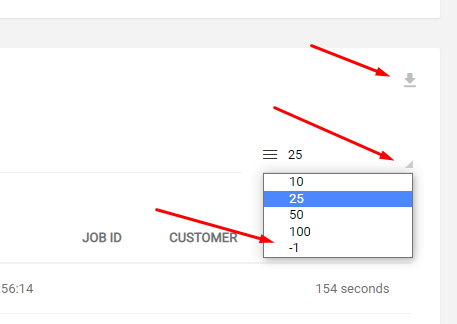
On the right select the drop down list and click -1
Open the downloaded report
Again expand all the columns
Click the 1 to select the whole first row and click on filter and filter again
Filter by Date / oldest to newest
Select the Row with the same ID from the Marketing Stats report
Shift Right arrow to select each column and Shift + CTRL + down arrow to select to sheet
CTRL + C to copy
Go back to the Marketing Stats sheet and make sure the correct ID is selected and press CTRL + V to paste it in the report.
This is all the completed now, you should be able to close everything and the marketing stats are updated